How to Crop Unwanted Backgrounds from Video Without Quality Loss
Executive Summary
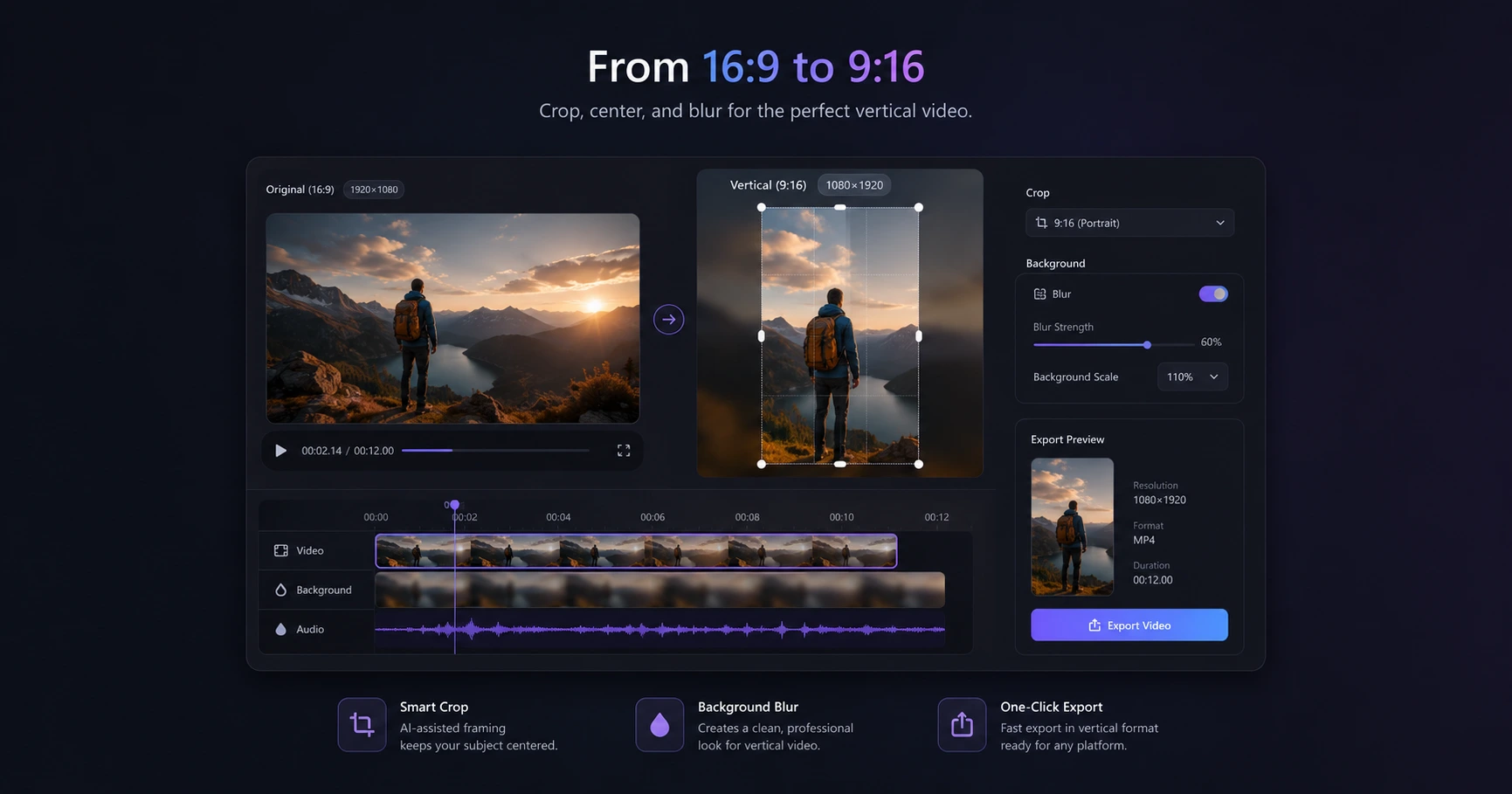
When fixing a framing mistake or removing a distracting element on the edge of the screen, creators shouldn't have to load up a heavy desktop editor or suffer the double-compression of cloud uploaders. Cropping directly in the browser ensures the raw footage retains its high resolution without the compression loss typical of remote servers, perfectly prepping the clip for your main editing timeline.
The Quality Cost of Cloud Cropping
Cropping a video should be a simple operation, but choosing the wrong tool can permanently ruin the visual fidelity of your footage. When creators rely on free, cloud-based video editors to trim the edges of a clip, they unknowingly subject their media to a harsh double-compression cycle.
First, the video is compressed when it is uploaded to the remote server. After you apply the crop, the server renders the file and applies a second layer of compression to keep the download size small and save bandwidth. By the time that file makes it to a social media feed—which will compress it a third time—the crisp native resolution is completely destroyed, leaving behind a muddy, pixelated video.
Fixing Framing Mistakes Instantly
Not every shot is framed perfectly in-camera. Sometimes a microphone stand drifts into the edge of the frame, a messy background element distracts from the subject, or archival stock footage needs to be tightened up before it can be used.
However, booting up a massive, professional desktop editing suite simply to shave a few pixels off the edge of a clip is a major workflow bottleneck. Heavy software slows down your machine and disrupts creative momentum. Modern creators require a dedicated formatting toolkit specifically designed to prep and standardize clips fast, before they ever hit the primary timeline.
On-Device Cropping
The solution to both slow workflows and cloud-induced quality drops is on-device processing. By utilizing a secure cropping utility that runs directly inside your web browser, your computer's own hardware handles the rendering.
This completely eliminates upload and download queues, allowing you to drag a heavy video file into the window and instantly slice away the unwanted background. Most importantly, because the file never leaves your physical hard drive, the export retains its maximum native resolution and your unreleased footage remains absolutely private.
Explore the Video Formatting & Reframing Cluster
The Ultimate Guide to Video Formatting and Reframing for Creators
Formatting raw landscape video for vertical platforms requires adapting the aspect ratio without sacrificing visual quality or subject focus.

Format your videos instantly
Prep and standardize your clips before they hit the editing timeline. Reframe, crop, split, and compress your footage directly in your browser with absolute privacy and zero watermarks.
Related Questions
Does cropping a video reduce quality?
Cropping can reduce visual quality if you use cloud-based tools that heavily re-compress the file during the export process. By using an on-device utility to crop the video directly on your own hardware, you preserve the original high-resolution fidelity without suffering double-compression.
How to crop a video directly in the browser?
You can crop a video in your browser by using a dedicated local formatting tool. Because the tool processes the video using your machine's power instead of uploading it to a server, the cropping happens instantly and keeps your raw footage completely private.