How to Resize Landscape Video for TikTok and Reels (9:16)
Executive Summary
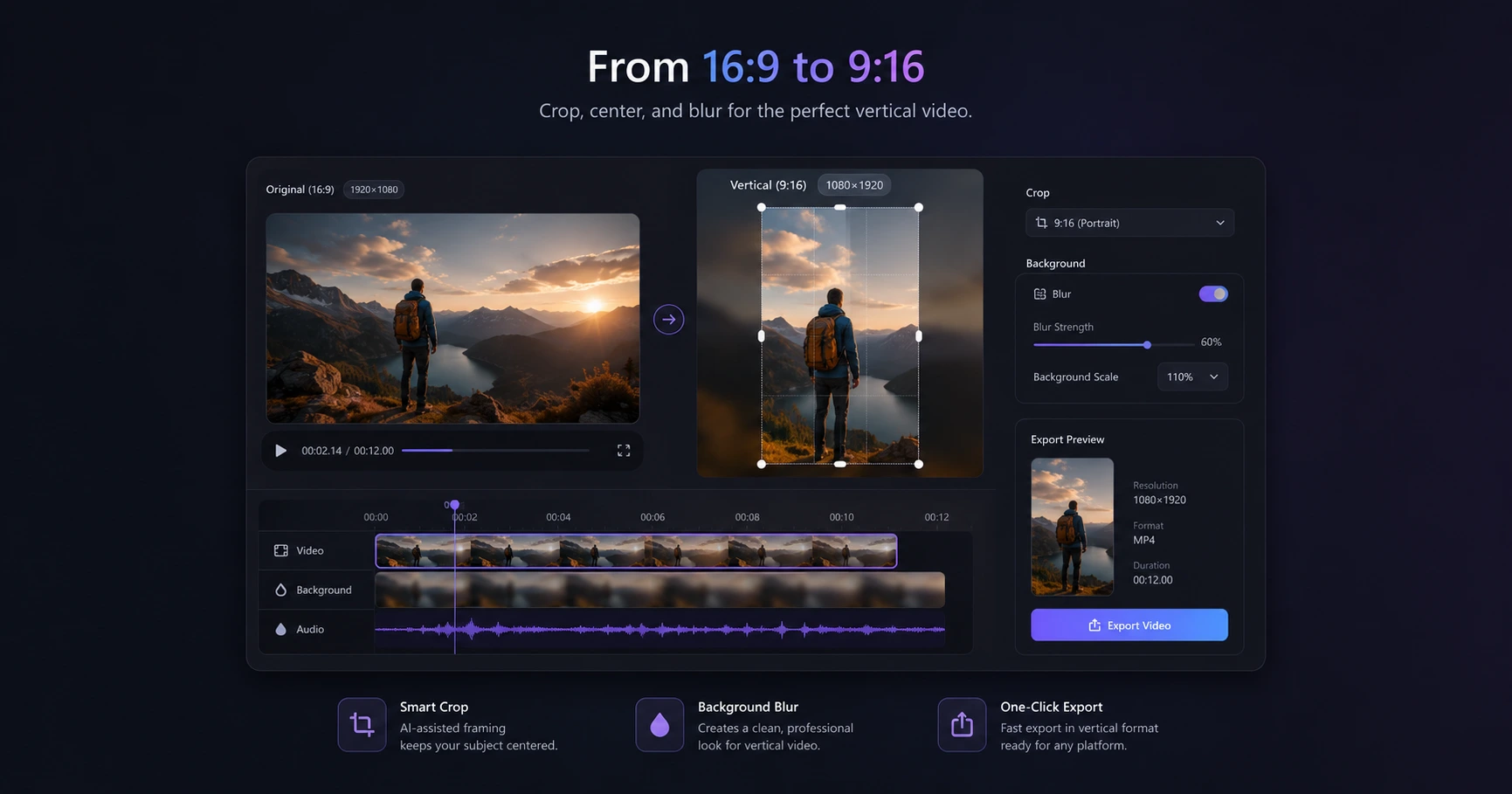
Converting 16:9 horizontal footage to 9:16 vertical often results in ugly black bars or aggressive cropping. The best method is to use an aspect ratio tool that automatically applies a smart background blur fill, keeping the subject in focus while matching the platform's native dimensions instantly.
The Challenge of the Vertical Feed
TikTok, Instagram Reels, and YouTube Shorts enforce a strict 9:16 vertical aspect ratio to maximize screen real estate on mobile devices. Uploading a standard 16:9 landscape video directly to these platforms results in one of two poor outcomes: either the app adds massive, distracting black bars to the top and bottom of the video, or it aggressively punches in, cropping out essential context and ruining the original visual composition.
For creators filming on traditional cameras, streaming via desktop setups, or capturing wide software tutorials, standardizing this footage for mobile feeds is a mandatory step. You cannot afford to lose the native quality of your footage or slice off half of your subject just to make a clip fit the algorithm.
Smart Background Blur: The Modern Standard
To avoid dead space and harsh crops, the professional standard is the "background blur fill." This technique involves duplicating the original landscape video, expanding the background layer to fill the entire vertical 9:16 canvas, and applying a heavy Gaussian blur effect. The original, crisp 16:9 video is then perfectly centered over this blurred background.
This maintains the subject's full context while transforming the clip into a native, immersive vertical experience. It feels custom-built for the mobile feed, ensuring your footage remains the focal point without subjecting viewers to jarring, empty black borders.
Resizing Instantly in Your Browser
Traditionally, achieving a perfect background blur required firing up a heavy desktop editing suite, layering multiple tracks, and manually tweaking blur filters. Alternatively, creators turned to remote cloud converters, enduring slow upload times and exposing their unreleased footage to third-party servers just to change an aspect ratio.
A modern formatting workflow bypasses both of these bottlenecks. By utilizing a dedicated utility right in your browser, you can convert landscape clips to vertical formats instantly. Processing the video using your own hardware means there are zero upload wait times, and it guarantees absolute privacy for your raw footage from start to finish.
Explore the Video Formatting & Reframing Cluster
The Ultimate Guide to Video Formatting and Reframing for Creators
Formatting raw landscape video for vertical platforms requires adapting the aspect ratio without sacrificing visual quality or subject focus.

Format your videos instantly
Prep and standardize your clips before they hit the editing timeline. Reframe, crop, split, and compress your footage directly in your browser with absolute privacy and zero watermarks.
Related Questions
How do I resize a 16:9 video to 9:16?
To resize a 16:9 video to 9:16, you must change the aspect ratio and fill the resulting empty vertical space. The most effective method is using a smart background blur fill rather than simply cropping the edges. Using an on-device formatting utility allows you to apply this effect instantly without loading up a complex desktop editor.
How can I blur the background of a vertical video?
Blurring the background involves duplicating your landscape video, scaling it to fill the 9:16 frame, and applying a blur filter behind your centered original clip. Dedicated browser-based formatting tools automate this entire process, allowing you to generate a professional blur fill instantly without uploading your footage to the cloud.