Fixing Audio-Video Sync Issues After Format Conversion
Executive Summary
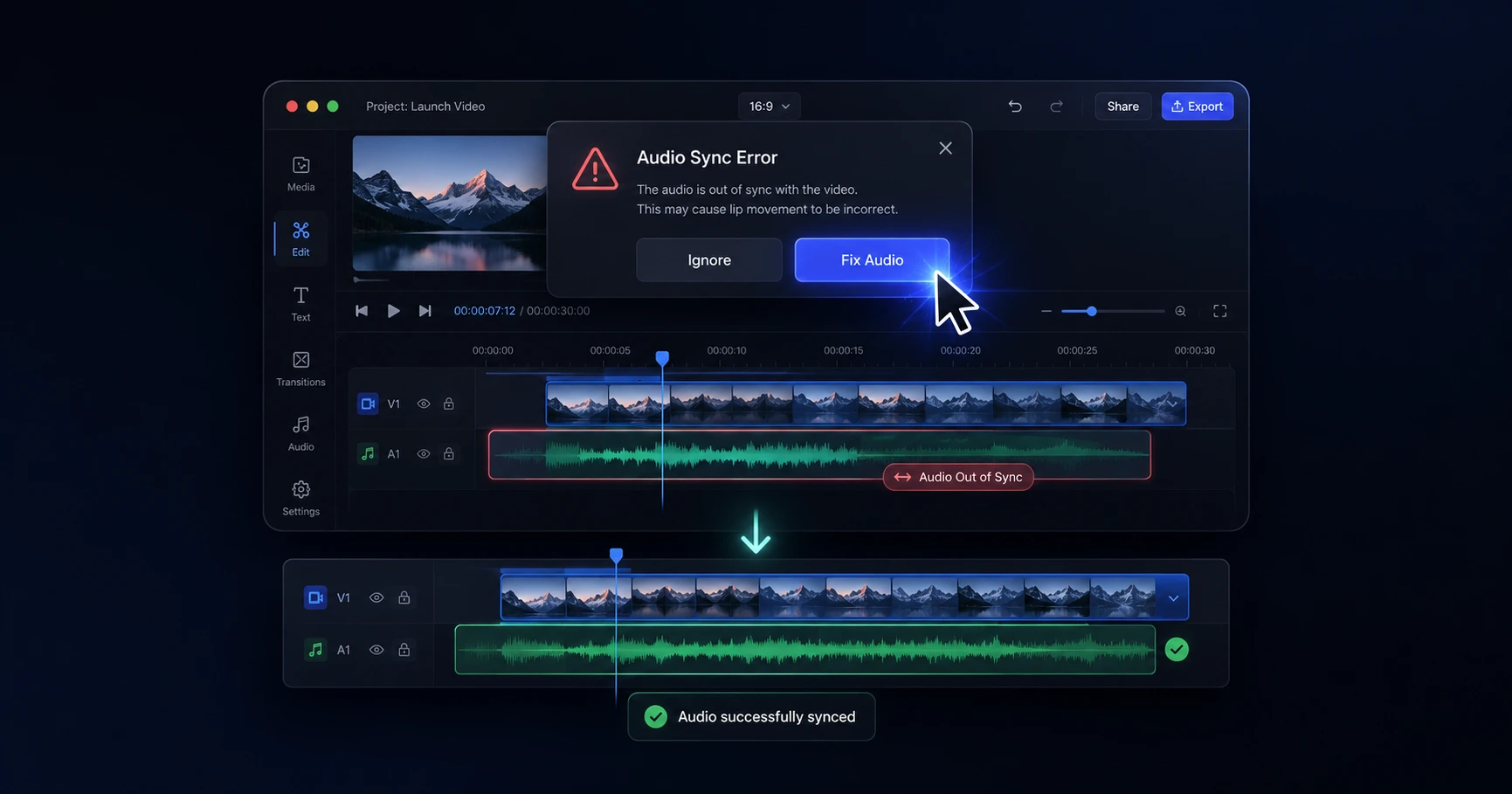
Variable frame rates and cheap cloud conversions often result in dialogue lagging behind the visual track. A reliable on-device converter handles variable framing properly, keeping your extracted audio and video tracks perfectly aligned without the need for manual timeline adjustments in your troubleshooting environment.
A reliable on-device converter handles variable framing properly, keeping your extracted audio and video tracks perfectly aligned without the need for manual timeline adjustments.Why Does Audio Desync Happen?
Audio desync usually occurs when video recorded with a Variable Frame Rate (VFR) is processed by software expecting a Constant Frame Rate (CFR). Modern smartphones frequently utilize VFR to save storage space; the camera intelligently captures fewer frames per second during still moments and ramps up the frame rate during fast action. While your phone's native media player handles this playback flawlessly, attempting to edit or convert the file introduces major issues.
Because the audio track runs at a constant speed, the shifting speed of the video track causes the two to drift apart during the conversion process. This drift becomes painfully obvious in dialogue-heavy clips, where perfect synchronization at the start of the video slowly decays into a one or two-second delay by the end, creating an unprofessional, dubbed effect.
The Flaw in Cheap Cloud Converters
When creators encounter formatting roadblocks, the immediate reaction is to use a free cloud-based converter. However, many remote servers utilize basic transcoding scripts that fail to interpret variable frame rate metadata correctly. Instead of calculating the correct timing to keep the audio locked to the visual cues, these converters blindly force the video into a constant frame rate, permanently breaking the synchronization.
Adding insult to injury, uploading massive 4K video files to these remote servers takes a significant amount of time. Waiting hours in an upload queue, only to download a file with completely ruined audio sync, is one of the most frustrating bottlenecks in digital content creation.
Securing Perfect Alignment
The most effective strategy to fix and prevent audio drift is to process the conversion using hardware-optimized utilities directly on your own machine. Modern browser-based tools are highly capable of reading the complex metadata of a VFR file and intelligently conforming it to a standard, edit-friendly format without breaking the audio sync.
By keeping the processing localized to your physical device, you completely eliminate remote upload wait times. You simply load the raw footage into your browser, and the utility correctly aligns the tracks while exporting the file instantly, ensuring your exclusive media remains completely secure and perfectly synchronized.
Explore the Troubleshooting Workflows Cluster
The Ultimate Guide to Troubleshooting Video Formatting Workflows
Processing heavy media files can occasionally push hardware limits, resulting in frozen exports, pixelation, or audio lag.

Format your videos instantly
Prep and standardize your clips before they hit the editing timeline. Reframe, crop, split, and compress your footage directly in your browser with absolute privacy and zero watermarks.
Related Questions
Why is my audio out of sync after converting a video?
Audio desync usually occurs due to variable frame rates in the original footage that basic remote converters fail to interpret correctly. Processing your media directly on your device ensures these frames are handled accurately, keeping your dialogue and video tracks perfectly aligned.
How do I fix variable frame rate audio lag?
To fix variable frame rate audio lag, you must transcode the video into a constant frame rate using a tool that correctly synchronizes the tracks. Using an on-device utility directly in your browser handles this conversion instantly, preventing the drift common in cheap cloud transcoders.