The Ultimate Guide to Troubleshooting Video Formatting Workflows
Executive Summary
Processing heavy media files can occasionally push hardware limits, resulting in frozen exports, pixelation, or audio lag. Understanding the root causes of these common glitches allows you to optimize your environment and utilize secure, on-device tools for a flawless export every time without crashing your system.
The Reality of In-Browser Processing
Processing video files directly in your web browser is a massive leap forward for creators, completely eliminating upload wait times and guaranteeing total privacy since the files never leave your computer. However, standard web browsers have strict memory limits designed to keep your computer running smoothly. Dropping a massive, uncompressed 4K file into a browser window can sometimes overwhelm these limits, unlike heavy, installed desktop software. The secret to a seamless workflow is understanding these boundaries and optimizing the file size before you attempt the final complex render.
Diagnosing Common Formatting Glitches
Even the most experienced creators run into technical walls when formatting raw media. Diagnosing the issue quickly keeps your creative momentum alive. Here are the most frequent bottlenecks and how to bypass them:
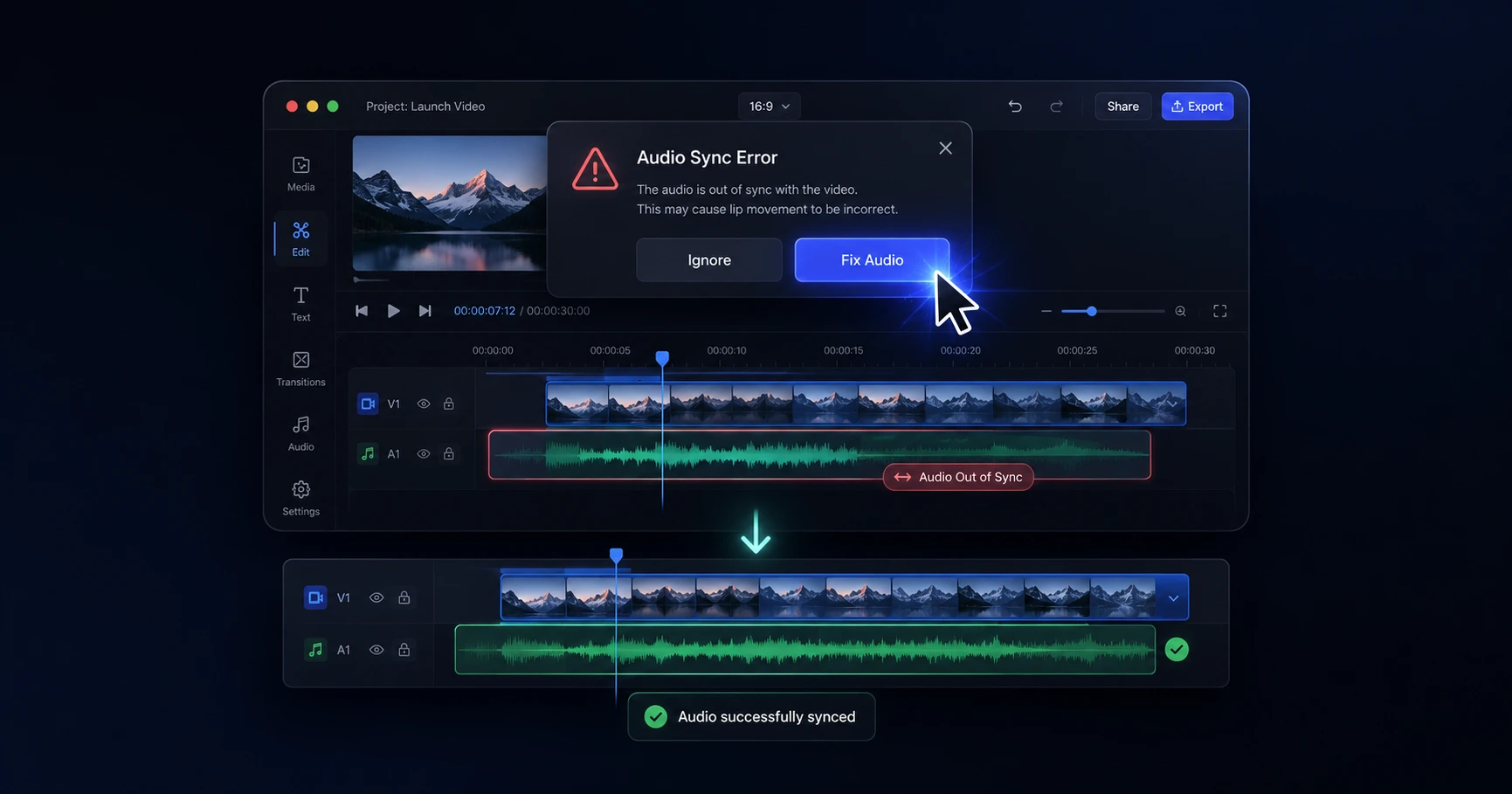
- Audio-Video Desync: One of the most frustrating errors occurs when your dialogue suddenly lags behind the visual track after a format conversion. This is usually caused by "Variable Frame Rates" common in smartphone footage clashing with cheap remote converters. Utilizing a dedicated tool that processes right on your machine ensures these frames are read accurately, keeping everything perfectly aligned.
- The "Out of Memory" Crash: If your web browser suddenly freezes or crashes during a massive export, it has run out of available system memory. Sticking to optimized file sizes—such as compressing massive raw footage to under 2GB before complex editing—prevents this overload and keeps your environment stable.
- Double-Compression Pixelation: Uploading raw footage directly to a social media app and using its native formatting tools often results in severe quality drops. The platform compresses the file aggressively. Properly formatting, cropping, and sizing the original file on your own hardware before uploading ensures it retains its crisp, native resolution on the final feed.
The Hardware Advantage
The most significant advantage of a modern creator workflow is control. When you format and prep videos using your own machine's power, you aren't at the mercy of a broken remote server or a congested cloud queue. Fixing an issue is entirely in your hands. By pairing optimized file sizes with secure, on-device utility tools, you guarantee a flawless export every single time without ever exposing your unreleased content to third parties.
Explore the Troubleshooting Workflows Cluster
The Ultimate Guide to Troubleshooting Video Formatting Workflows
Processing heavy media files can occasionally push hardware limits, resulting in frozen exports, pixelation, or audio lag.

Format your videos instantly
Prep and standardize your clips before they hit the editing timeline. Reframe, crop, split, and compress your footage directly in your browser with absolute privacy and zero watermarks.
Related Questions
Why does my browser freeze when exporting a video?
Browsers typically freeze during video export when massive, unoptimized files overwhelm the available system memory. Shrinking the video size beforehand and utilizing dedicated on-device tools prevents this memory overload, ensuring a smooth and uninterrupted final render without relying on unstable remote servers.
Why is my audio out of sync after converting a video?
Audio desync usually occurs due to variable frame rates in the original footage that cheap remote converters fail to interpret correctly. Processing your media directly on your device ensures these frames are handled accurately, keeping your dialogue and video tracks perfectly aligned.