Why Browsers Crash During Large Video Exports (And How to Fix It)
Executive Summary
Extremely heavy raw footage can easily overwhelm standard browser memory limits, resulting in frozen screens and crashed exports. By understanding these hardware constraints and utilizing a pre-optimization workflow, creators can safely work through their formatting processes without ever risking an "out of memory" failure.
Understanding Browser Memory Limits
Unlike heavy desktop applications installed directly on your hard drive, web browsers operate within strict, artificial memory constraints to keep your computer running smoothly. When you drop a massive 10GB raw 4K video file into a web window, the browser attempts to hold all that data in its active memory (RAM) while processing the edits. If the file size exceeds the browser's allocated memory cap, the system triggers an "Out of Memory" error, instantly freezing or crashing the tab. This isn't a bug in the software; it is a built-in safety mechanism to prevent a single web page from crashing your entire operating system.
The 2GB Optimization Rule
To guarantee a smooth editing and export experience within a browser-based environment, professional creators adhere to the 2GB optimization rule. Keeping individual media files under the 2 Gigabyte threshold ensures that the browser has plenty of breathing room to process complex tasks, like aspect ratio reframing or auto-generating subtitles, without ever approaching its maximum memory limit.
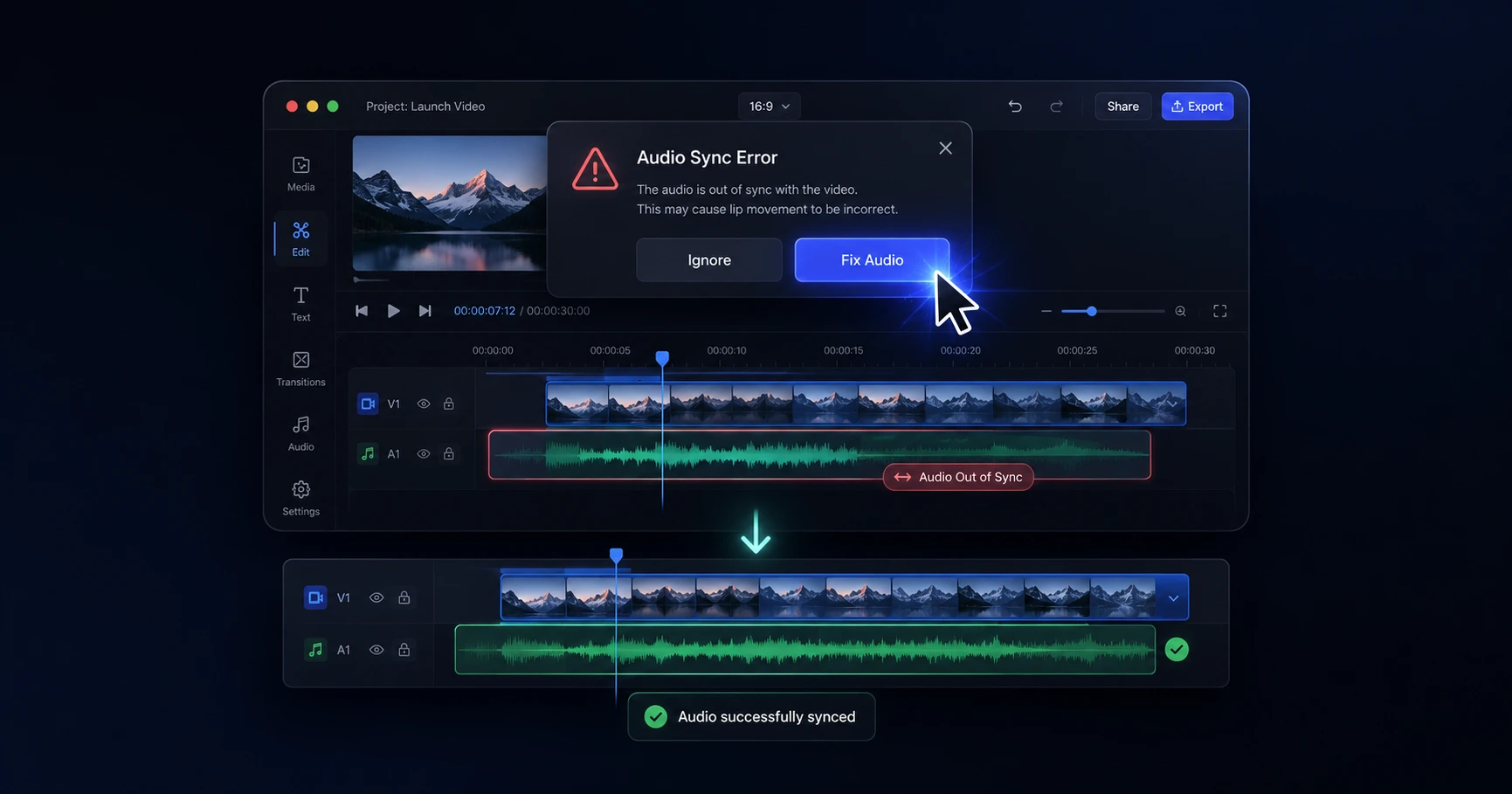
Attempting to bypass this rule with massive raw files forces the browser to constantly swap memory data, leading to sluggish timeline playback, audio desync, and inevitable export failures. Respecting the file size cap is the key to maintaining lightning-fast performance during web-based video formatting.
The Pre-Optimization Workflow
If you shoot in high-bitrate 4K, your files will naturally exceed these web limits. The solution is not to abandon the speed and privacy of in-browser processing, but rather to adopt a "pre-optimization" workflow. Before dropping a massive file into a complex editor, you must first compress it into a manageable size.
By utilizing a dedicated, on-device utility tool first, you can instantly shrink a 5GB raw file down to a highly optimized 1.5GB MP4. Because this initial compression happens locally on your machine, there are zero upload queues and your unreleased footage remains completely private. Once optimized, this lighter file will glide through any browser-based formatting timeline, ensuring a flawless, crash-free final render every time.
Explore the Troubleshooting Workflows Cluster
The Ultimate Guide to Troubleshooting Video Formatting Workflows
Processing heavy media files can occasionally push hardware limits, resulting in frozen exports, pixelation, or audio lag.

Format your videos instantly
Prep and standardize your clips before they hit the editing timeline. Reframe, crop, split, and compress your footage directly in your browser with absolute privacy and zero watermarks.
Related Questions
Why does my browser freeze when rendering a video?
Browsers freeze during video rendering when massive, unoptimized files exceed the strict memory limits set by the application. Utilizing an on-device compressor to shrink the raw file before complex editing prevents this memory overload and ensures a smooth export.
How can I prevent my web browser from crashing during export?
To prevent crashes, adhere to the 2GB optimization rule by pre-compressing heavy raw footage. Processing this natively in your browser using a dedicated utility keeps the memory footprint manageable and guarantees a flawless, crash-free export without ever relying on unstable remote servers.